

Moisture and water can be your smartphone’s worst enemies. Therefore, you should always try to keep your phones away from moisture. However, sometimes you can’t avoid these situations, and your phone will be exposed to water or moisture. This can cause serious damage to your phone. When a Samsung smartphone is exposed to moisture, a moisture icon appears on the screen during the charging process to alert you. However, sometimes you can get this notification even when your phone is completely dry. Generally, when your phone comes into contact with water, you can try to use a blow dryer or rice to evaporate and absorb water moisture. At times, you can even use vibration to get water out of phone charging port. But if you are looking for how to get water out of charging port Android device, this is the perfect guide for you. In this guide, we will discuss how to dry charging port Android device and methods to figure out how to remove moisture from phone charging port.
How to Remove Moisture from Phone Charging Port
There can be various reasons for moisture in phone notifications while charging Samsung smartphones. Some of the more common reasons are mentioned here.
- When your phone is exposed to water or moisture, you will see a moisture notification during the charging.
- You can also see this notification due to a corrupt USB cache on your Samsung smartphone.
- The issue can also be caused by fast charging and improper fast charging configuration on your Samsung smartphone.
- Sometimes glitches with your Samsung account can also cause this issue.
- Various bugs and issues on your phone can also cause this issue.
- An unsupported wired charger can also cause this error.
Method 1: Manually Clean Phone and Charging Point
Before trying more advanced options to figure out how to clean charging port Samsung smartphone, you should take some general physical checks on your Samsung Galaxy smartphone such as vibration to get water out of phone charging port. Generally, when you receive a moisture exposure notification on your Samsung Galaxy smartphone, it is because your phone has been exposed to water or some kind of moisture. You can keep the following points in mind when you see this notification on your phone to figure out how to dry charging port Android device. Follow these points to get water out of the charging port without rice.
- As soon as you notice that your phone has been exposed to water or moisture, remove it from the charging port.
- Power off your phone, and clean it with a dry cloth.
- You can also gently shake your phone to remove any droplets and remaining moisture from the device.
- You can also use a dryer, or blower to blow warm air on your phone to evaporate moisture.
- Keep your phone in a well-ventilated area for a few hours.
Hence these are the steps you can follow to clean charging port Samsung device. Once you have tried all the general steps to figure out how to remove moisture from phone charging port. You can move on to more advanced methods to resolve how to get water out of charging port Android device.
Method 2: Clear USB Cache
If general physical checks like vibration to get water out of phone charging port don’t help, you can try these advanced methods to fix this issue. If you are receiving a moisture warning icon on your Samsung Galaxy smartphone even when your phone is completely dry, the issue can be caused by corrupt cache data. Follow these simple steps to clear the USB cache on your Samsung Galaxy smartphone.
Open Settings on your phone and then navigate to Apps.

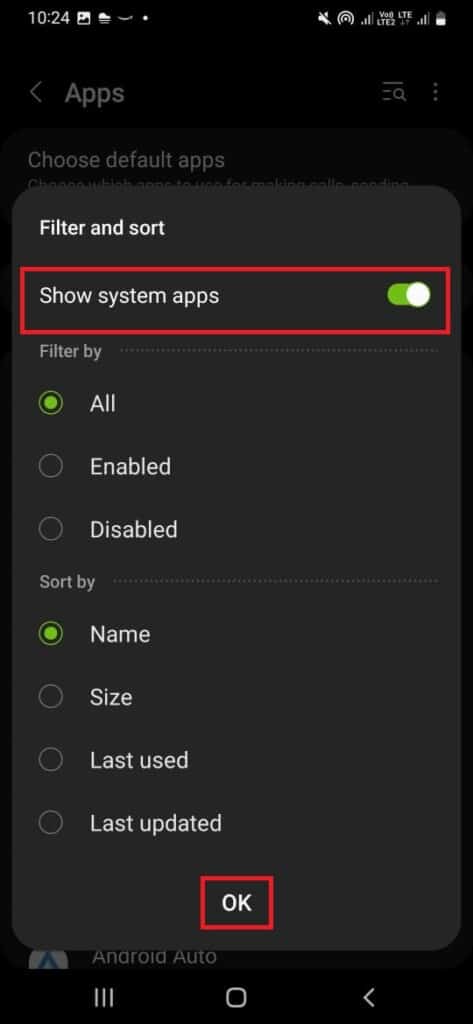
- Here, tap on the Filter and sort icon.

- Now, enable the Show system apps and tap OK.
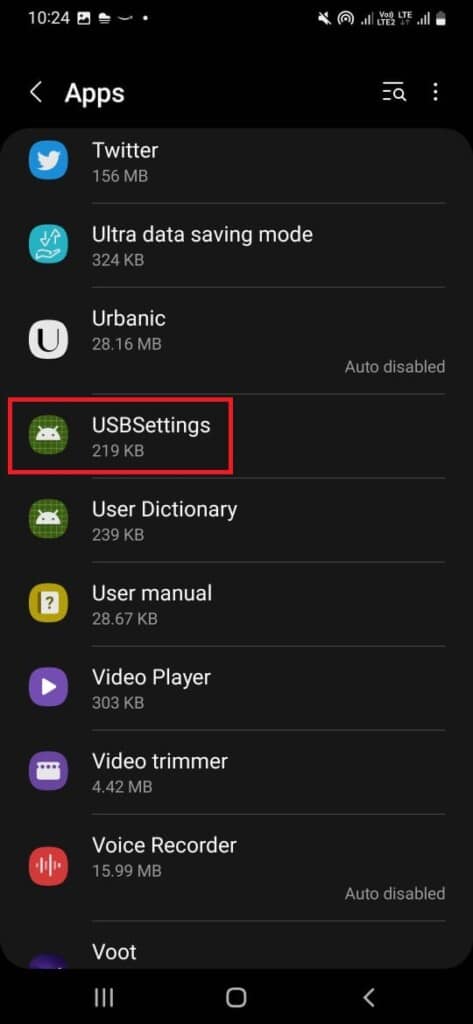
- Here, locate and select USBSettings.
- Now, select Storage.
- Here, tap on Clear cache.

Method 3: Disable Fast Charging
Another effective method is to disable the fast charging option on your smartphone. Charging your smartphone at a low voltage lowers the risk of damage due to moisture and can help you resolve this issue.
- Open Settings from the phone menu.

- Here, navigate to the Battery and device care.

Here, tap on Battery.

- Locate and select More battery settings.

- Here disable the following options.
- Fast charging
- Super fast charging
- Fast wireless charging

Method 4: Use Computer for Charging
If you can’t figure out how to clean charging port Samsung and are not able to turn off the fast charging option from your smartphone. You can try to charge your phone with a computer to figure out how to get water out of the charging port without rice. To charge your phone using a computer, connect it to the computer via a USB port. As soon as you connect the USB cable to a computer, your phone will automatically start charging. However, computer charging can take a lot of time to fully charge your computer. But, you should be able to charge your phone enough to power it on and attempt other troubleshooting methods to figure out how to get water out of charging port Android device.
Method 5: Re-login to Samsung Account
Many users reported that a simple sign-out and sign-in process helped them resolve the issue of how to remove moisture from phone charging port. Therefore, if previous methods do not work and you continue to have the same issue, you can try to fix it by signing out and then again signing back into the Samsung account. You can follow these simple steps to sign out and sign in to the Samsung account on your phone to figure out how to dry charging port Android device.
- Open Settings on your Samsung smartphone.

- Here, locate your profile name, and tap on it.

Now, locate and select Sign out.

- Tap on Sign out to confirm the action, and then enter your password to verify your identity.
- Now, again, open Settings on your Samsung device.

- Tap on Samsung Account at the top.
- Sign in with your credentials.
Method 6: Enable Safe Mode
If you can’t figure out how to clean charging port Samsung, you can use Safe Mode on your device to resolve this issue. Safe Mode is one of the best utilities on smartphones to deal with various system issues. You can also try to enter safe mode on your Samsung smartphone to figure out how to get water out of the charging port without rice. You can only access system apps in safe mode and avoid bugs and errors caused by other factors. You can enable safe mode on your Samsung smartphone by following these simple steps.
- Long press the power button on your Samsung phone.
- Once you see the power menu, long press on the Power Off icon.

- Finally, tap on the Safe Mode icon to enable Safe Mode.

Method 7: Use Wireless Charger
If none of the previous methods work and you continue to have the same issue, you can try to use a wireless charger to charge your phone and avoid damage from moisture.
Frequently Asked Questions (FAQs)
Q1. What to do when my smartphone gets exposed to water?
Ans. You can try some manual fixes to reduce damage to your phone, such as drying your phone with a blower. You can also keep your phone in a well-ventilated space.
Q2. Can moisture harm my smartphone?
Ans. Yes, moisture can harm your phone, and damage the sensors on it. Therefore, always keep your phone away from water and moisture.
Q3. Should I charge my phone when it shows a moisture alert?
Ans. No, if you see a moisture alert on your smartphone, you should immediately remove your phone from charging to avoid any further damage.
Q4. How do I know if my Samsung phone was exposed to moisture?
Ans. Most Samsung smartphones will display a moisture icon on the screen if the phone has been exposed to water or moisture.
Q5. What can I do to remove moisture from my smartphone?
Ans. You can try various methods to remove moisture from your phone, such as vibrating the phone to remove moisture from the phone and keeping it in rice to absorb water.