Android as an operation system has evolved significantly throughout these years. It has become the most used mobile operating system in the world in just under a decade. Google incorporated some useful features into Android operating system such as custom DNS over TLS, auto fill for usernames and passwords, notification channels, app permissions, DND mode, native dark mode (with Android Q), and much more. The most underrated feature in Android, I think, is the notification categories or notification channels.
Google’s developer team has done a good job introducing notification channels with Android 8.0 Oreo. While Android also introduced heads up notifications into Android a long time ago, and do not have system wide disable option for it yet, we do have some great notification management systems introduced in 8.0 Oreo and 9.0 Pie. So if you are anything like me who absolutely hate heads-up notifications or popup notifications, then here you will learn how to disable it.
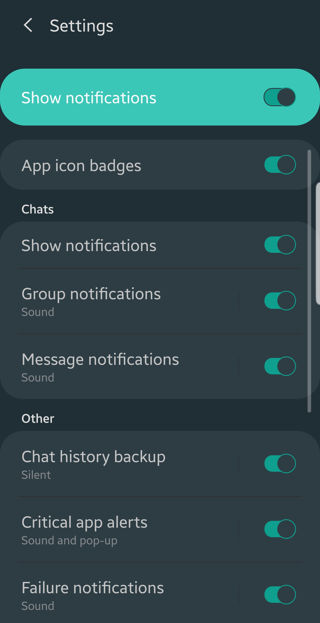
While notification channels is a great feature, a lot of Android users don’t know how to make full use of it. With notification channels, you get full control over each and every notification of each and every app. You can disable a specific channel while keeping the functionality of other channels intact.
For instance, a simple messaging app like WhatsApp has several notification channels including private chats, group chats, backup notification, media playback, calls, critical app alerts, and much more. You can disable a specific category such as backup. You can also change the notification mode to silent, pop-up, vibrate, or disable entirely without hampering the functionality of the app.
Here is an example of notification channels:
Here are some nifty tricky that will come handy in making your Android experience even better. See how to manage notifications on your Android phones.
How to disable pop-up notifications? (Heads-up notifications)
If you are anything like me, who absolutely hate the pop-up notifications (aka heads up notifications), then you have come to the right place. Here you will learn how to disable the popup notifications. You can change the mode of the notification to sound or silent. Don’t worry, this won’t disable the all the notification. Neither will this remove notifications from the notification panel. You can still hear the notification sound, the led light will blink, and it can be accessed or replied from the notification panel. It just won’t popup on screen over other apps.
I disable heads up notifications because I am a heavy
WhatsApp user and get a lot of notifications throughout the day. So I don’t want to be bombarded with each and every message while I am watching a video, playing game, or just scrolling through apps or reading articles.
Here is an example of heads up or pop up notification:
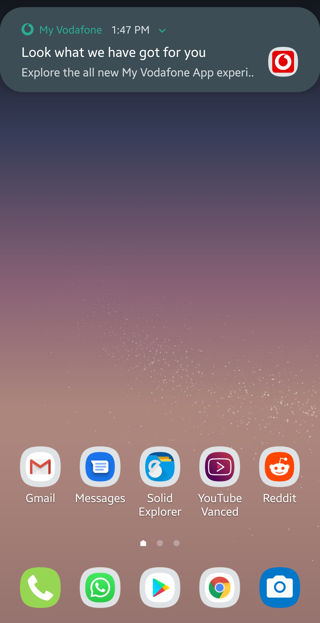
Don’t you just hate it? Well, without wasting time, lets see how to disable this popup notification.
Note: For Android 8.0 Oreo or above, you can disable the heads up notification throughout the system for each and every app at once. Visit this tutorial. For Android 9 Pie or later, proceed with the following.
- Got to settings app
- Scroll down and select Notifications or Apps and Notifications option. It may vary depending on your Android device.
- Now search for the app you want. For instance, we have selected WhatsApp.
- You will see all the notification categories there.
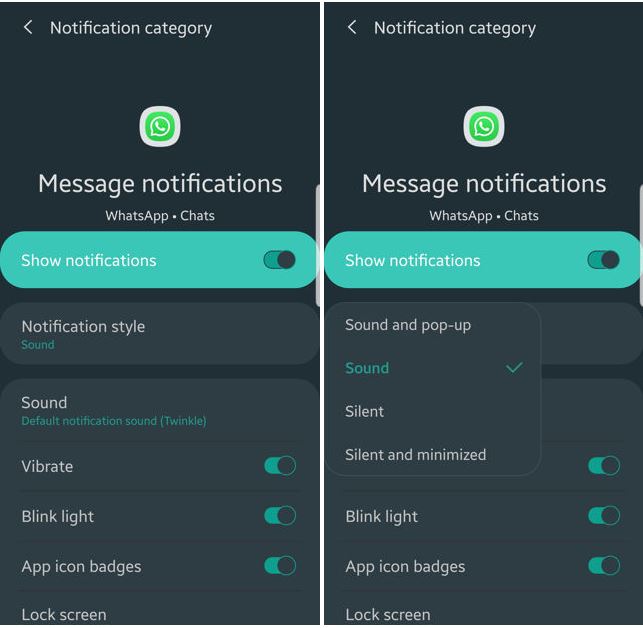
- We will select the first category here called Notification style.
- Select the mode you prefer. Here we have selected Sound only.
- This will disable the popups you get from the app.
- You can play around with it until you find something you are looking for specifically.
How to disable app notifications completely?
If you don’t like a certain app or don’t want to see the notifications from it then you can block or silent the app entirely. Here is how to do it.
- Long press the app icon for which you want the notifications gone
- Select app info
- If no such option is available on your Android phone, then see above method.
- Select notifications option
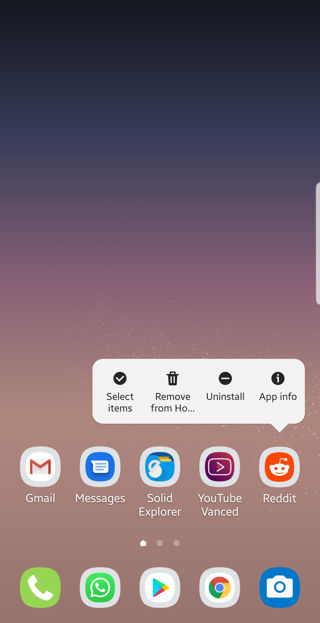
- Switch the toggle for ‘show notifications’ to off.
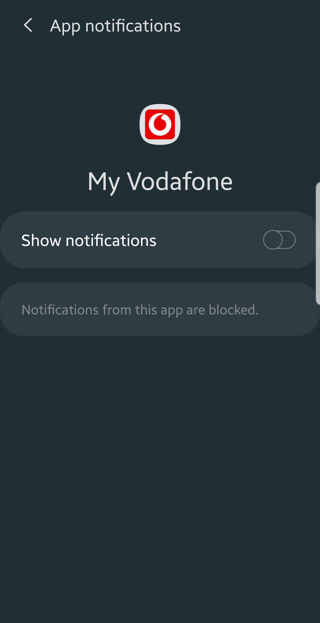
- This will disable all the notifications of the particular app until you toggle it on
- You can also long press the notification from the notification panel and toggle notifications off from there easily
Hibernate apps using Greenify to see notification only when you open it
Greenify is a very beautiful app. It is free to use and one of a kind. We have been recommending it for all Android users for extending battery life by hibernating background running apps. However, here is another use case for the app.
You can use Greenify to hibernate least important apps so you can see all the notifications all at once whenever you open the particular app later. I personally use this trick on shopping apps or food service apps that constantly send push notifications with offers and whatnot. This way, when I actually want to shop, I open the app and I get to see all the offers.
This way, you are not distracted by notifications, your work is productive, and still don’t miss out on promotions and offers from the app when you need it. Most importantly, I use it for Facebook Lite and Messenger Lite at the end of the day when I need to checkout on my feed.
Manage SMS Notifications using Android Messages
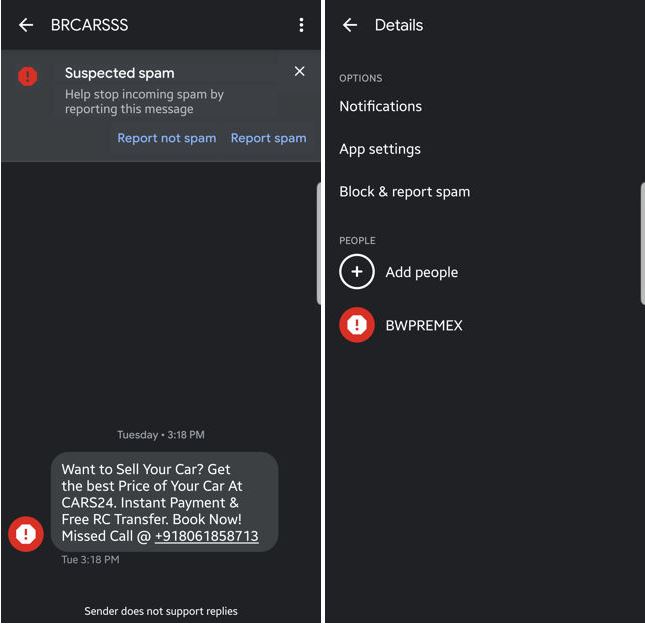
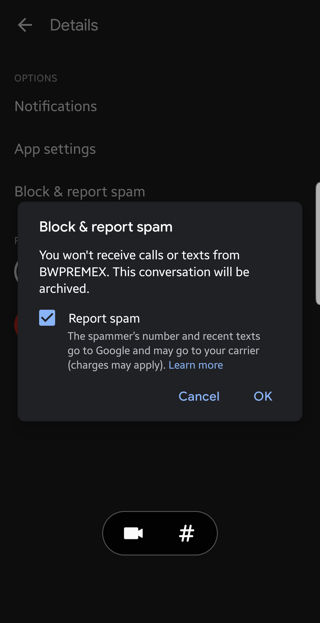
Android Messages from Google is by far the best SMS app on the Play Store. The latest version of Android Messages support notification categories and channels. So you can easily block each and every SMS service provider; even those without a number. It also has an automated spam checker so SMS get filtered out. You can also block each and every contact or SMS service permanently from the settings.
You see, SMS is not my primary mode of contact for family and friends. We use WhatsApp for that. I only use it for banking SMS and other important SMS services.
However, if you are a heavy SMS user, then the following will help you block certain SMS services or simply turn off the notifications for them. Open the spam app, tap in the 3 vertical dots in the top right corner. Select notifications and turn it off.