
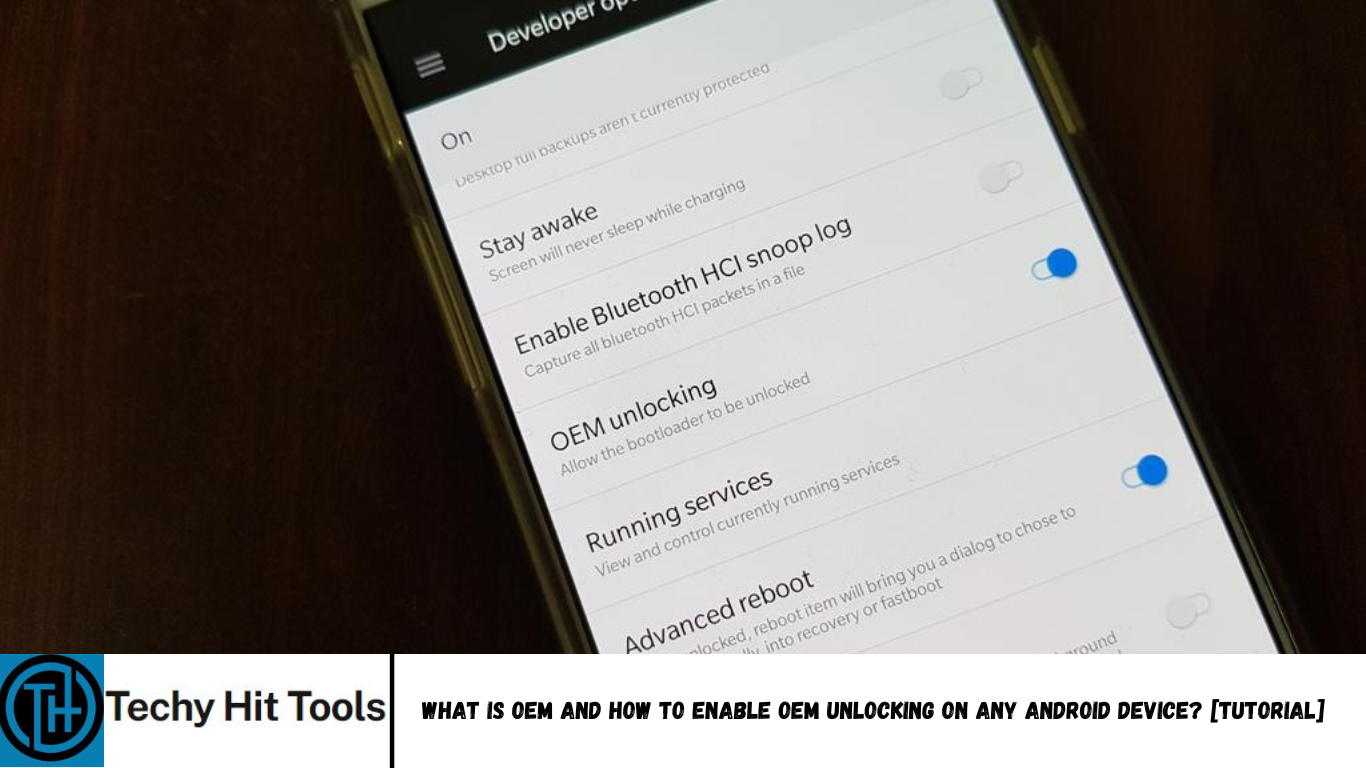
OEM is one of the most discussed topics in Android community. Mostly we would see discussions over how to unlock OEM or unlock the bootloader. Not to forget the highly discussed ‘how to root’ for Android devices. So what exactly is OEM and why is it kept locked? OEM stands for Original Equipment Manufacturer and it is kept locked to either prevent unlocking the bootloader of the device or prevent installing custom ROMs or packages onto the device.
You may ask, ‘what is bootloader’? Well, a bootloader is a software that runs when your device turns on. It packages the instructions to boot operating system kernel. And you need to unlock the bootloader to enable OEM (in case your device doesn’t provide the OEM Unlock Option)
Again, OEM is that permission which if granted will give the super user access to anyone. And one can do lots of modifications in his Android device. Even if your device is stolen, no one can steal the data unless OEM is unlocked. Sounds fascinating..? Well, now you have a basic idea of OEM, let’s see how to unlock OEM in Android devices in detail.
Availability of OEM Unlocking Options
Wel, not every Android device allows the unlocking of OEM.Devices running on Android 5,6 or Android 7.0 Nougat there is an option for unlocking OEM provide by the manufacturer.
We can unlock the OEM by enabling the developer option which is a hidden option.
How to unlock OEM in Android devices running on Android
Lollipop, Marshmallow and Nougat
Step-1 Go to Settings > About Device
Step-2 In “About Device” section, scroll down to “Build number”
Step-3 Tap on “Build Number” for 7 times in quick succession.
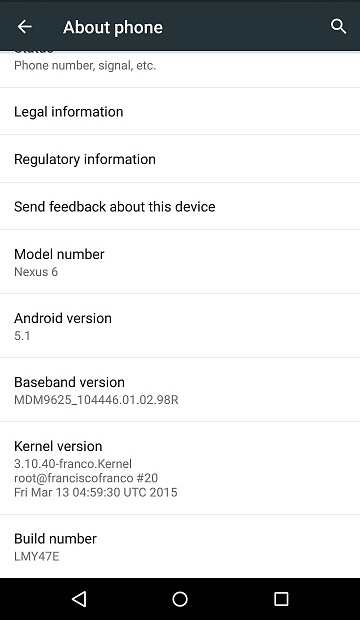
Step-4 A message will flash saying “You are now a developer”.

Step-5 Go to Settings.You will see a new option called “Developer options”.
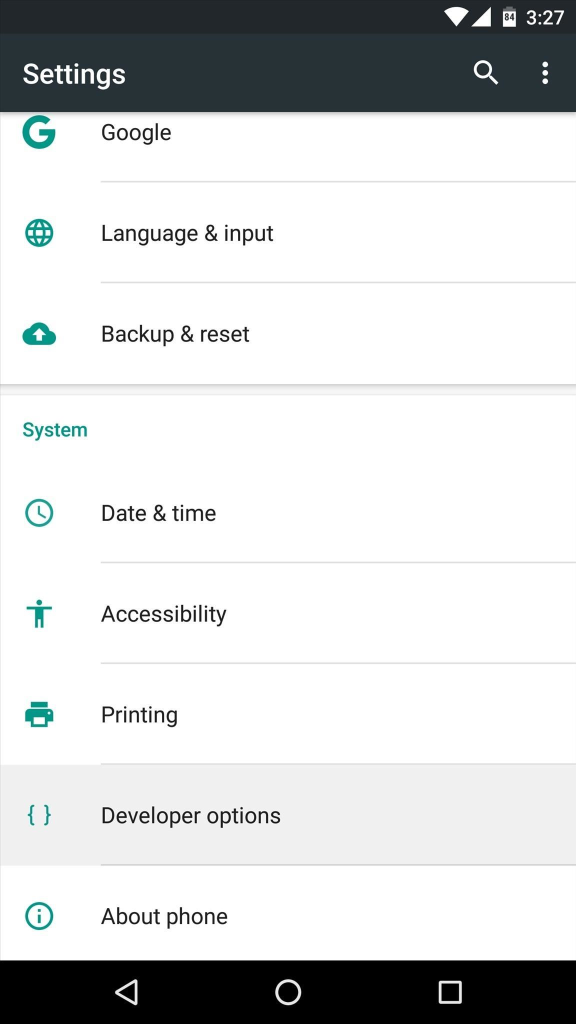
Step-6 Tap on “Developer Options”
Step-7 Scroll down to “OEM Unlocking” option. Enable it.
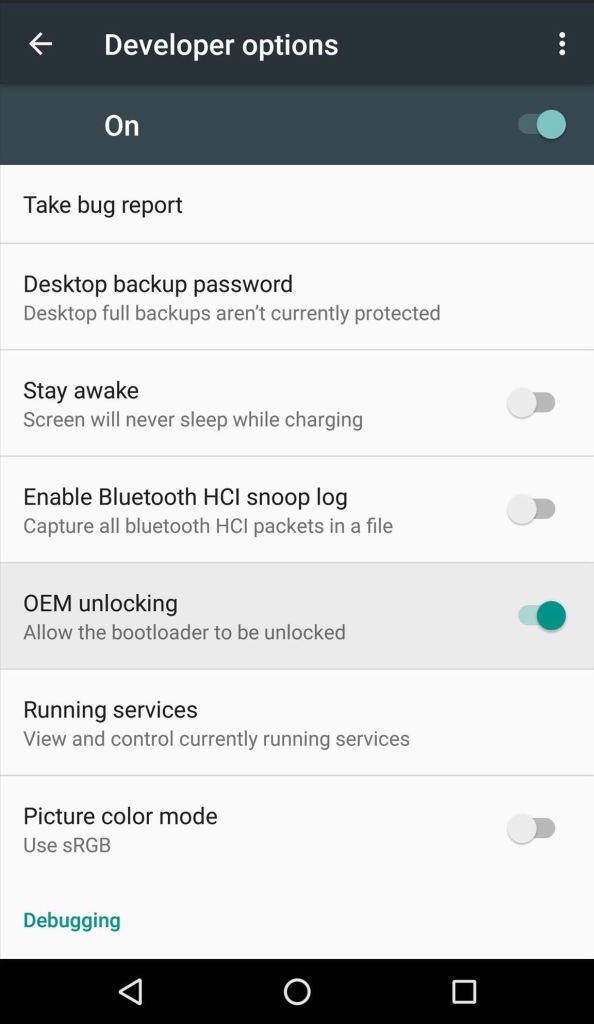
That’s it… You have successfully unlocked the OEM in your device !!! That was cool, wasn’t it?And pretty simple too.
But like we mentioned, not all devices allow OEM Unlocking option.
Manufacturers like Samsung, Nexus, HTC, Motorola etc. provide this option to unlock OEM.
But what about those devices that have no such options to unlock the OEM.
And is it possible to unlock OEM by any other methods.? Well, let’s check that out.
How To Unlock OEM in Android devices using USB Debugging and Fastboot
Yes! It is very much possible to Unlock OEM in the Android devices that do not provide an option for that. We will use a method called USB Debugging and by using Fastboot.
BUT FIRST OF ALL, TAKE A FULL BACKUP OF YOUR DATA BEFORE PERFORMING ANY MODIFICATION ON YOUR DEVICE.
And AndroidSage will not be responsible for any kind of loss of data or problem occurring due to modification on your device. It’s your sole choice to perform the modding.
So, let’s get started. We will start by installing USB drivers and ADB files on the PC.
Step-1 Download the 15 second ADB installer and run the .exe file to perform the setup.
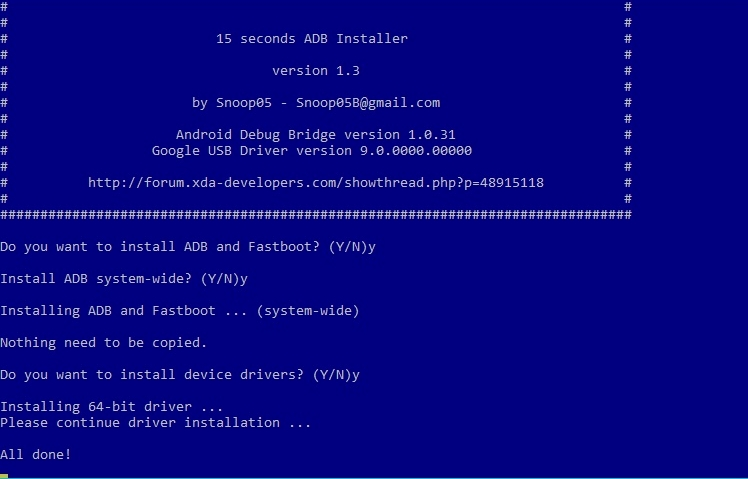
Step-2 After setup is completed, you will see ADB folder on your C drive (C:\adb).
Step-3 Connect your phone to the PC and click Start>Device Manager.
Now here you will see your device listed under the portable device.
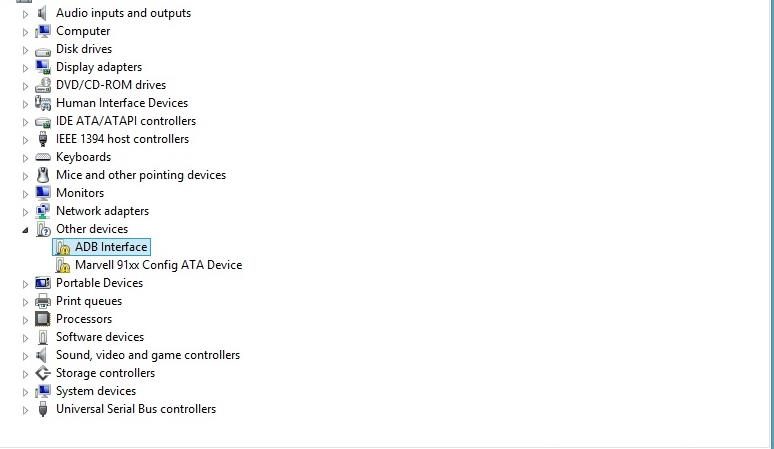
Step-4 Right-click on ADB Interface and select update driver software.
Step-5 Then a new window will display. Click on the “Browse my computer for driver software”.
Step-6 Then next screen will display. Click on “Let me pick from a list of device drivers on my computer” and click Next.
Step-7 On the next screen select “Android Device” and click Next.
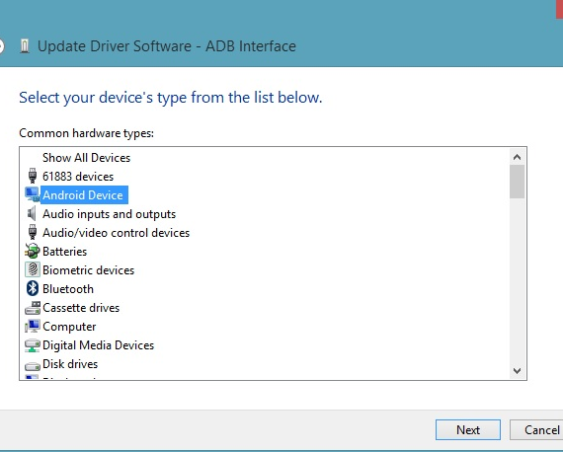
Step-8 Now ADB drivers are installed on the PC. Select “Android ADB Interface” and click Next.
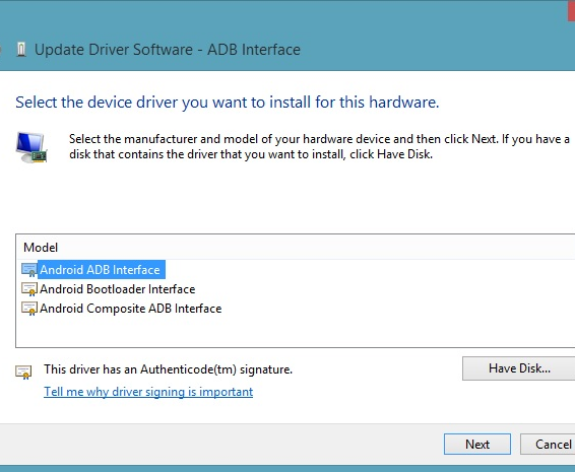
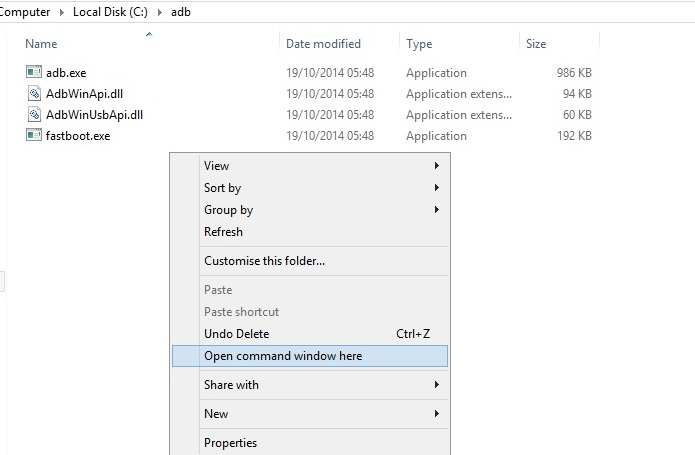
Step-9 Finally, ADB and USB drivers are now installed. To check it is working or not connect your phone to the PC and open command prompt in your ADB folder.
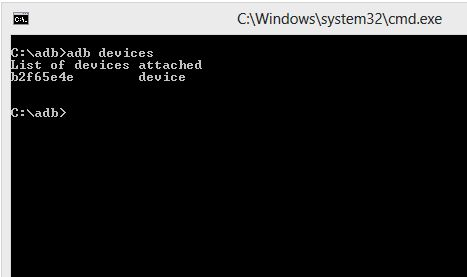
Step-10 In command prompt type, C:\ADB > ADB devices. On pressing “Enter” it will display the list of attached devices.
Steps To Unlock the Bootloader of Android phones
Next step is to unlock the bootloader in order to unlock the OEM.
As mentioned before:
- upon unlocking the bootloader, all data will be wiped out of your device.
- And the warranty of your device will also expire.
- Carefully follow all the steps, else your device will hard brick.
Step-1 On your device Go to Settings > About Phone > Build number
Step-2 Tap on the build number 7 times, to enable Developer Options.
Step-3 Yet again go to Settings > Developer Options > USB Debugging enable USB Debugging.Tap on OK button.
Step-4 Now we will Boot the Android device in Fastboot mode.
Step-5 Connect your device to the PC with USB cable.
Step-6 Open Command Prompt in the C:\ ADB folder.
Step-7 Type this command C:\ADB > ADB reboot bootloader. Press Enter.
Step-8 Again type C:\ADB > fastboot devices

Step-9 Now type this command C:\ADB>fastboot OEM unlock.
Step-10 Again type this command, C:\ADB>fastboot OEM device-info.
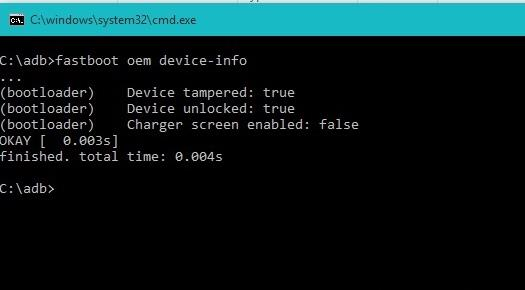
Step-11 See that Device tampered and Device unlocked are set to true.
Step-12 Again run command C:\ADB > fast boot reboot and Press Enter.
Well, there you go. Now the OEM is unlocked. (along with the bootloader)
OEM/Bootloader Unlocking: Pros And Cons
Yup..OEM/Bootloader unlocking has its own set of Pros and Cons. Let’s take a look.
Pros
You get super user access and unlock features on your device.
You can install custom ROMs.
No one can access your data without your pattern, PIN, or password.
Cons
- If you will not follow the steps properly, your device will hard brick.
- When you will unlock Bootloader, your existing data will be wiped out.
- If your device is stolen, someone might install custom ROM even though he can’t access your data.And will use that to wipe out your data.