
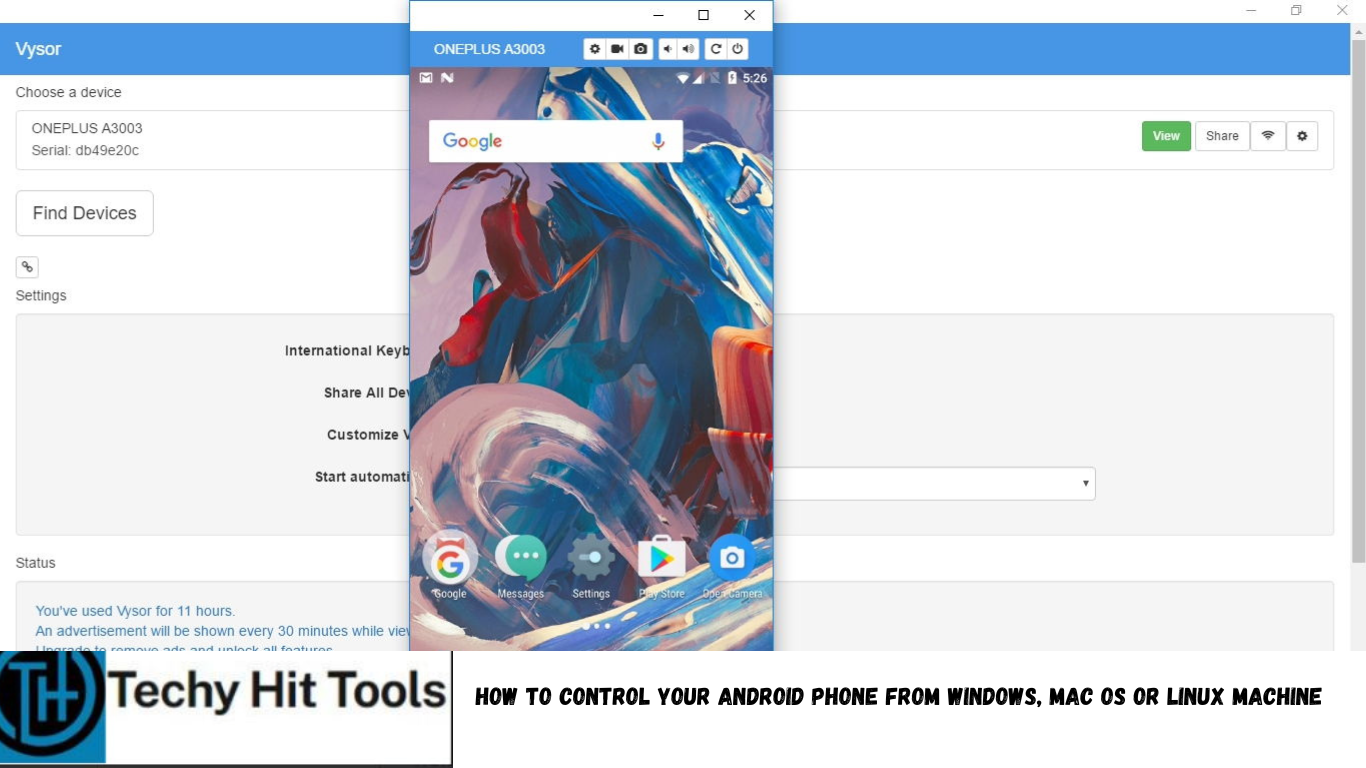
There are a bunch of reasons why you would want to control your Android devices from your computer. One of the major reasons could be that your phone’s display or screen is broken screen, or that it has stopped taking touches. We are going to help you get access to your Android system with a USB cable, Another great functionality included in this guide is that you can cast your Android’s screen onto your PC for better gaming experience or for some other useful reasons. This could also be helpful for App developers, to cast phone screen on PC to test new apps right from PC using Emulators.
Although there is a list of ADB commands you can issue through a command prompt or a terminal in order to operate your Android phone, the commands are very limited and it will take too long to discover each and every activity name and package name from Android system. Here’s a list of useful ADB commands you can use on Android.
As a solution, Vysor is a great alternative for viewing and controlling your Android from your computer. Moreover, with Vysor you can use apps, play games, and control your android with your mouse and keyboard. The functionality comes with three download options, the Vysor Android App, Vysor Chrome extension and a Standalone Desktop App for better performance. The following procedure works for Mac OS, Linux and Window provided you have Google Chrome on your PC.
Download Vysor
Vysor is your window to your Android. The free version allows you to mirror your android to your desktop and controls your android with an ability to capture screenshots as a bonus. This is enough for daily usage. Here are the features of Vysor:
- High-quality mirroring,
- Fullscreen mode,
- Go wireless,
- Vysor share to share your screens for remote assistance,
- Drag and drop for more accessibility and,
- Access to all future features.
For Developers, it works best as it lets you ditch the emulator by integration and ease of access on a real Android device. With Vysor Share, developers can remotely debug and test their applications across a wide range of devices.
- Vysor Android App (For Android)
- Vysor Chrome extension (Needs Google Chrome on your PC)
- Standalone Desktop Application (Optional for Windows)
How to Control Android from Windows, MacBook, Linux or Chrome Book?
As the Vysor app is available with three options, the installation procedure is pretty simple and we will show you how.
Step 1: The first thing you need to do is to install the Vysor app on your Android Device. To do so, visit Google pay store, search for Vysor app by ClockworkMod, and press install, or check downloads.
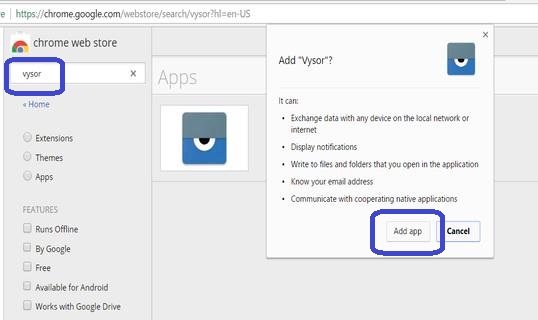
Step 2: In order to use Vysor, you will also need Google Chrome on PC. Install the Chrome Extension on your Desktop:
- To do so, Go to the Chrome web store and search for vysor or just click here for a direct link.
- Select add to chrome.
- Select add app option.
- Let the download complete.
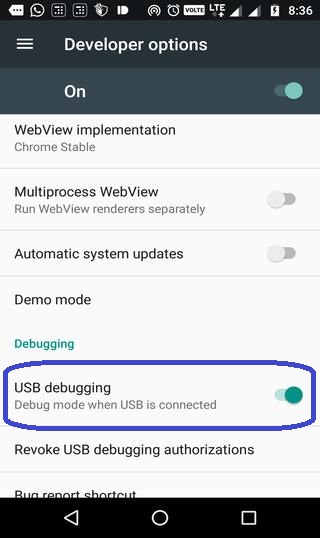
Step: 3 It is very important to note, to connect your phone to the PC, the USB debugging should always be ON. For some reasons, if you don’t know how to turn USB Debugging ON, follow these quick steps:
Go to the settings > Developer Options> turn ON USB Debugging.
If you couldn’t find developer options on your phone then> click About Phone> press build number seven times> and follow point no 1 again.
Refer screenshots for better understanding:
- Open the Vysor app, it will give you a welcome statement> select next.
- Then enable USB Debugging from the developer options.
- Connect your phone to your computer using USB cable.
- Now, launch Vysor app on your Chrome.
- Once the app is launched> click Find Devices.
- Select your device and hit the view butt
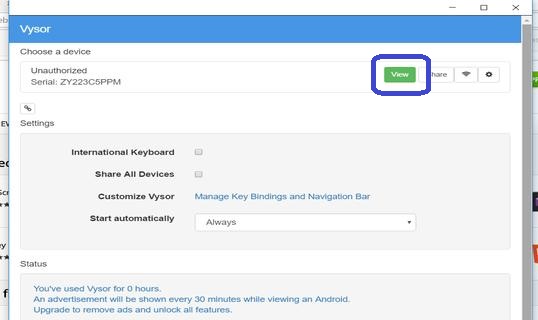
- A pop-up on your android device will arise to allow USB debugging> Click Okay.
- Once you click okay, your android screen will cast on your PC.
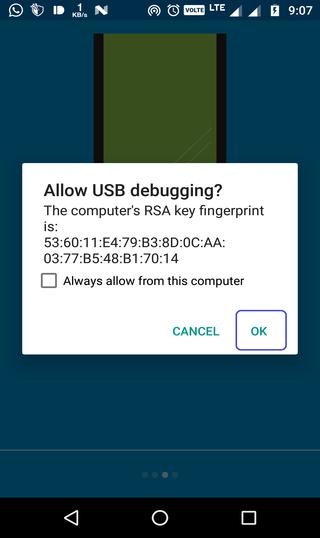
- A pop-up on your android device will arise to allow USB debugging> Click Okay.
- Once you click okay, your android screen will cast on your PC.
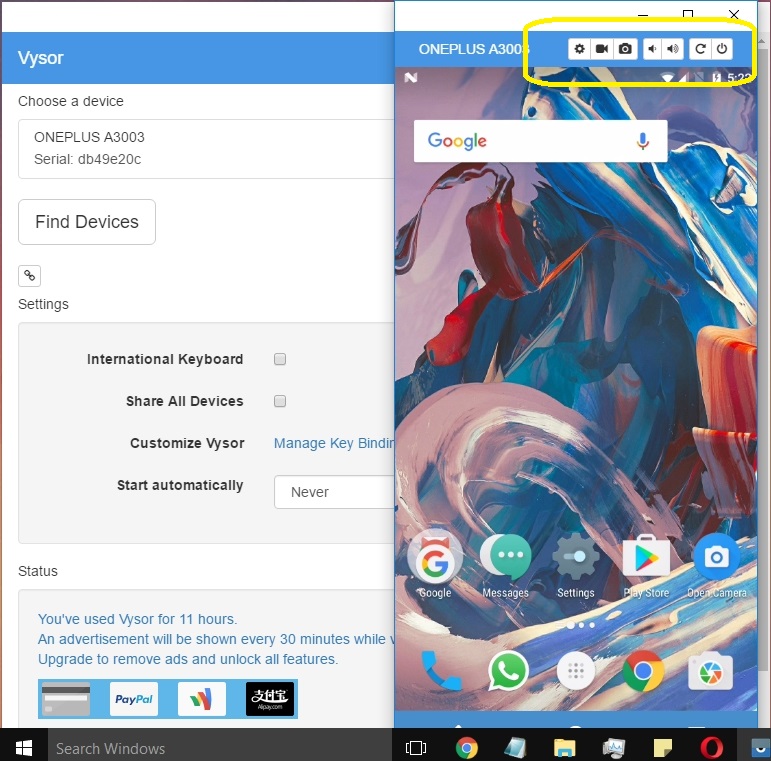
Ta-Da! You’re done. Now you can use your android device on your PC with full access, use apps, play games, test apps or text 1000 words in few minutes using your keyboard. You can also capture photos, videos or lock your device from the app itself. Pretty cool, Isn’t it? If you face any issue with the installation, let us know in the comments section below.