
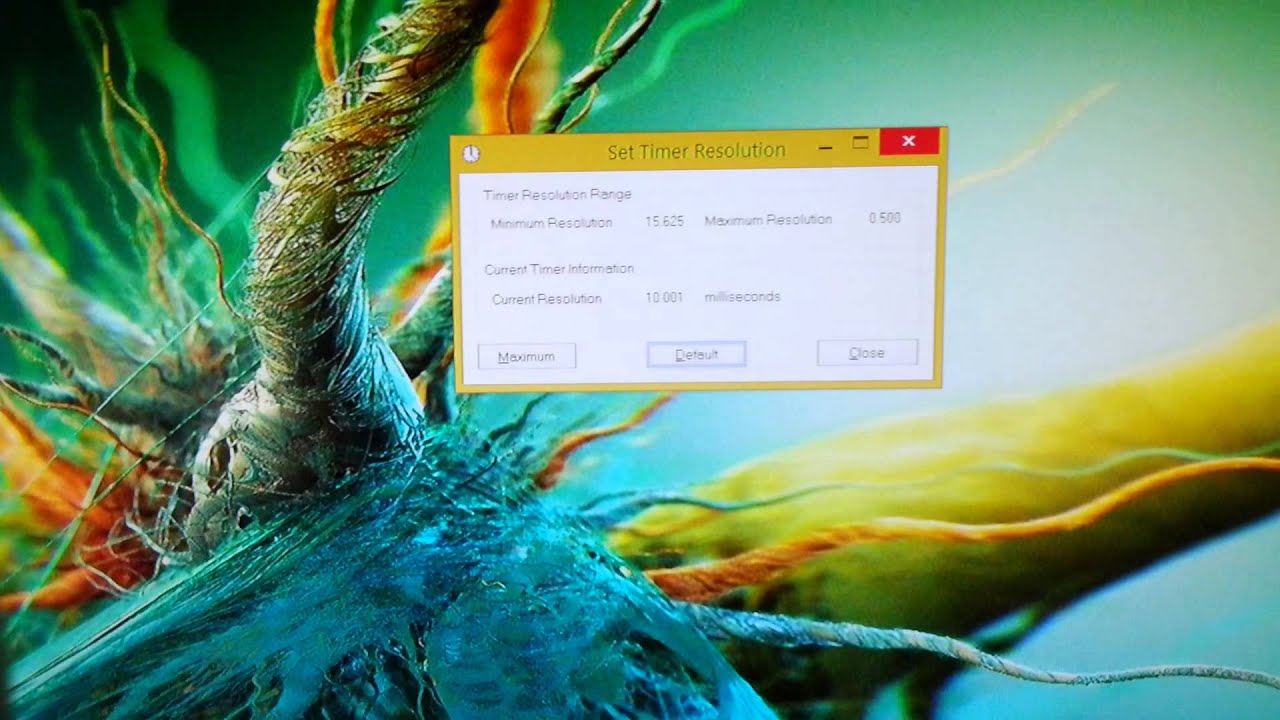
In the realm of computer systems, timer resolution plays a crucial role in determining overall performance. Essentially, timer resolution refers to the granularity or accuracy of time measurements made by the operating system. It influences various aspects of system behavior, including task scheduling, multimedia playback, and overall responsiveness.
Importance of Optimizing Timer Resolution
Optimizing timer resolution can lead to significant improvements in system performance and user experience. By adjusting timer settings, users can minimize input latency, reduce jitters in multimedia playback, and ensure smoother execution of real-time tasks. However, improper configuration or neglecting timer resolution optimization may result in sluggish performance, increased power consumption, and degraded user satisfaction.
How to Set Timer Resolution on Windows Systems
For Windows users, adjusting timer resolution involves accessing system settings through the Command Prompt or third-party utilities. Here’s a step-by-step guide to setting timer resolution for optimal performanceIn the Command Prompt window, type “powercfg /energy” and press Enter.Wait for the energy efficiency report to generate.Look for the “Platform Timer Resolution” section to view the current timer resolution settings.
Adjust Timer Resolution
To set a custom timer resolution, download and install the “TimerTool” utility from a trusted source.Launch TimerTool and choose your desired timer resolution (e.g., 0.5 ms, 1 ms, etc.).Click on “Apply” to update the timer resolution settings.
Verify Changes
Return to Command Prompt and re-run the “powercfg /energy” command to confirm the updated timer resolution.Ensure that the Time Resolution changes are reflected in the “Platform Timer Resolution” section.
Best Practices for Timer Resolution Optimization
To maximize the benefits of timer resolution optimization, consider the following best practices:Regular Monitoring: Periodically check timer resolution settings to ensure they align with performance requirements.
Avoid Extreme Values:
While lower timer resolutions can enhance responsiveness, excessively high resolutions may strain system resources unnecessarily.Test and Iterate: Experiment with different timer resolutions to find the optimal balance between performance and stability for your specific workload.
Utilize Power Plans:
Windows offers power plans that may affect timer resolution settings. Choose a power plan that prioritizes performance when necessary.Be Cautious with Third-Party Tools: When using third-party utilities for timer resolution adjustment, ensure they come from reputable sources to avoid potential security risks.
Conclusion:
Optimizing timer resolution is a valuable strategy for enhancing system performance and responsiveness. By understanding its importance and following the recommended steps, users can fine-tune their systems for optimal results. Remember to monitor changes and adjust settings as needed to maintain an ideal balance between performance and stability. With the right approach, mastering timer resolution can lead to a smoother computing experience and increased productivity.