
The whole Android community is all in on the latest Android 11 firmware update. It features some of the best features from previous Android 10, 9 Pie, and introduces some of its own as well. Google introduced the Product Sans or Google Sans for Pixel phones way back in Android 8.1 Oreo beta firmware update. You can now download and Install Google Sans or Product Sans Font on any smartphone, tablet, or even PC, and web pages using the TTF or WOFF files.
Here we have the latest Google Product Sans font for all the Android devices. With Android 8.1 Oreo, Google introduced a new font called “Product Sans” also known as Google Sans. Now you can install Android 8.1 Oreo’s product Sans font on any Android device. This font works perfectly from Android versions 5.x Lollipop, Marshmallow, Nougat, Nougat, Oreo, 9 Pie, Android 11/10, and onward.
Moreover, Product Sans install seamlessly on every Android device running Stock or custom ROMS. Even the latest One UI 3.0 or previous Samsung Experience (TouchWiz), MIUI, Oxygen OS, and more. It even supports Magisk and Substratum on these devices. Some of the firmware can even change their lock screen fonts. In this post, we will guide you on how to enable Google Product Sans font from 8.1 Oreo on various Android ROMS.
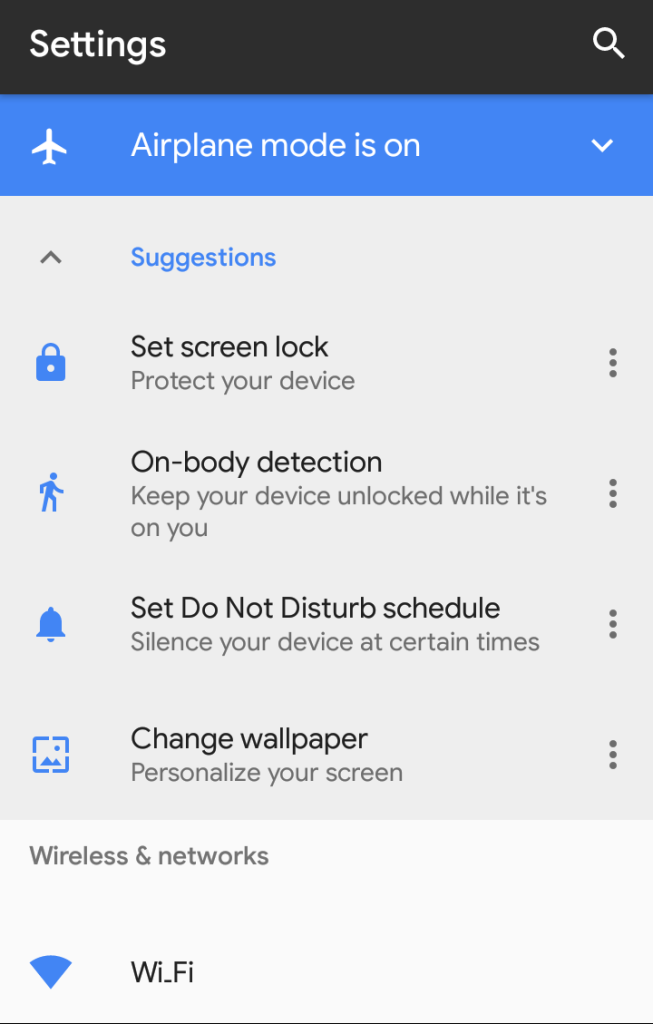
Download Google Sans Font TTF
Here is the original and updated Google Sans, also known as Product Sans, in .TTF extension. This is the most common format for installing fonts on any smartphone, tablet, PC, or even web pages.
- Download Google Sans Font TTF (direct link from cufon fonts)
- Download Google Sans Font WOFF (direct link from cufon fonts)
Download Product Sans for Samsung Galaxy devices in TTF format
It was just want the plain Product Sans with .ttf extension in regular, bold, and italic versions, for Samsung Galaxy devices download from below.
- Original Product Sans font Google
- Restore Robots Font
Download Product Sans Font
Google Product Sans zip Download for TWRP – Gdrive Mirror – (1.28 MB)
Restore Stock Roboto font TWRP zip download – (3.50 MB)
Google Product Sans for MIUI Download .mtz file – (304.4 KB)
Google Sans Font Download Magisk module zip – (354.7 KB)
Google Product Sans zip Download for MIUI TWRP – (1.66 MB)
Pixel+2+Lockscreen+Clock APK download – (1.94 MB)
TWRP Google Sans zip for Resurrection Remix – (1.28 MB)
TWRP Google Sans zip for Pixel – (1.28 MB)
How to install Google Product Sans on any Android device?
Like we said this font works on devices running both stock Android as well as custom Android OS. Custom Android OS includes the custom build of ROMs based on Lineage OS, AOSP etc.
Let’s see the steps to enable Android 8.1 Oreo with Google Sans font.
Method 1: Install Google Product Sans using TWRP recovery method
Make sure your device has the latest TWRP recovery installed.
Download the Google Product Sans TWRP zip file from download section. Or to restore to stock Roboto, download Roboto zip.
Reboot your device into TWRP recovery mode.
Take a full Nandroid backup of your device system. TWRP > Backup > Select System.
Now Install Product Sans by selecting and the flashing the zip. Install > Select and flash the zip > Reboot > System
Finally reboot to the system.
To revert back to original font, restore “system” using TWRP. OR, flash the stock Roboto zip.
Enjoy your Google Sans font on your device.
Well, you can undo this font too. If you want to get back to previous Roboto font, just flash TWRP_StockRoboto zip.
Method 2: How to easily install Product Sans Google font on MIUI ROM?
Now the devices running MIUI 8 and MIUI 9 or later can enjoy latest Android 11, 10, 9 Pie, 8.1 Oreo with Google Sans font. You can install Google Product Sans font by both TWRP recovery and without TWRP. We will see how to do both.
Install Google Sans font on MIUI devices with TWRP:
Downloads the TWRP MIUI GoogleSans Zip file flash using TWRP as mentioned in the method 1.
To install follow the exact same steps you followed while installing the Android 8.1 Oreo Google Sans font on devices with stock/AOSP ROMs.
Installing Google Sans font on MIUI devices without TWRP:
Method 3: How to install Produst Sans Font using Magisk Manager?
- Make sure your device have a rooted Android device with latest Magisk Manager.
- Download the Google Product Sans Magisk module zip from download section.
- Launch Magisk Manager app.
- Go to Magisk Module > Add Module > Select Magisk font zip.
- Install and activate the Magisk Product Font module.
- Reboot device once.
How to change LockScreen Font Using Magisk Manager and Substratum?
Make sure you have either Magisk or Substratum installed on your Android device. You need to download Substratum theme engine first of all to change the lock screen font.
Downloads:
- Magisk-GoogleSans Zip file
- Substratum Theme Engine APK file
- Pixel+2+Lockscreen+Clock_1.0 APK file
- Steps of Installation
Step-1 Flash Magisk_GoogleSans.zip using TWRP.
Step-2 Next install the Substratum Theme Engine
Step-3 Then install Pixel+2+Lockscreen+Clock_1.0 APK.
Step-4 Open Substratum and apply the overlay.
Step-5 Reboot to system.